Category Archives: Tech

Oracle, SQL, Operating Systems

APEX: List of Values

Dag!

It is not the best way to place an input field on your report interface if there are only a certain amount of possible input values. Right?

Let ‘s say we want our users to enter a Currency Code to return the Currency Rate of it..

apex_lov_1
sample SQL

So you deployed that one to APEX as an interactive report..

Since we ‘ve a bind variable, there has to be page item on your report interface.. If you create your page item as TEXT field, it works just fine.

But the problem is, users can enter currency codes which are not exist :)

To avoid that, we can set the page item type as Pop-Up LoV.

apex_lov_5
Item Types

At some point, we will be prompted to define Values for our List.

apex_lov_6
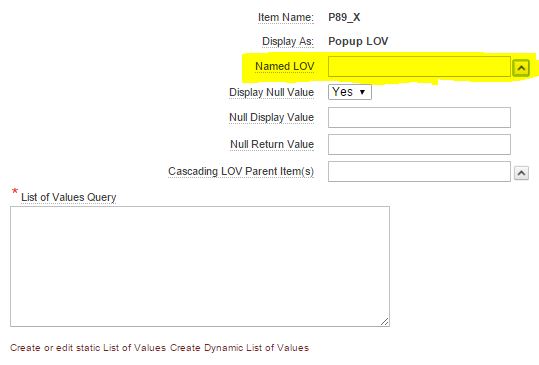
List of Values Query/ Named LoV Selection

Now we have 2 + 1 options:

  1. We can create a static list. It can be useful if we have only a bunch of values and they really are static.
  2. We can write our query which will return 2 columns: Display Value, Return Value
  3. We would create a Shared Component so we can reuse it on other pages as well :)

Number one is quite easy.. Just type your values as it ‘s shown below, be careful with spelling.

apex_lov_7
Static Values

Number two is a one time solution. Meaning, if you want to do same thing for another interactive report, you ‘ll have to do it again.

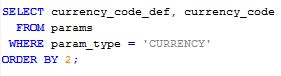
Say we have a param table where we can get all possible ISO Currency Codes:

apex_lov_8
Sample Dynamic LoV Query

Once we use this simple query as LoV Query, indeed we ‘ll have a dynamic LoV object.

However, to make it more efficient, we can also create a shared component with it so we can could use that object on other pages too.

Go to Application Builder then select your Application and click to Shared Component link.

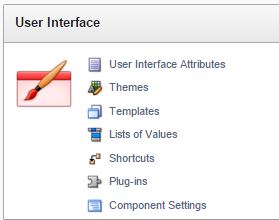
You ‘ll see some User Interface options there:

apex_lov_9
List of Values Menu
  • Pick the List of Values.
  • Start from scracth
  • Set a name
  • Click to Dynamic radio button.

Write or Paste your Dynamic LoV Query to the text box.

Complete these steps by following on-page instructions.

Great!

Now we have a generic LoV which will list all the possible Currency Codes in our environment.

Now go a few steps back.. As you can see from List of Values Query/ Named LoV Selection there is a yellow marked area called Named LoV.

Click on it and pick your freshly built LoV.

Finally our user can input the currency codes without typing them manually :)

apex_lov_4
Sample Pop-Up LoV

Cheers!

SQL Plus: Generating Delimited Files

Hoi!
Say you need to dump a special set of data into a file..

Sure you can do that with fancy SQL clients which have graphical user interfaces. However, sometimes you do need to export your data set into a plain text file in a *certain* format, via sqlplus.

In some cases, for instance, if you ‘re going to use that file to feed another system, you ‘ll have to follow that 3rd systems data delivery rules. There can be some restrictions such as

  • Maximum line size
  • End of Line characters
  • Default Character Set
  • Pages
  • Spaces

etc.

So, since we are using sqlplus for our action, better prepare our query as a script.. I won ‘t explain all of these definitions, but it ‘s quite easy to find out what they do :)

Let ‘s write our .sql script by starting these SETs:

SET LINESIZE 300;
SET TERMOUT OFF;
SET ECHO OFF;
SET NEWP 0;
SET SPACE 0;
SET PAGES 0;
SET FEED OFF;
SET HEAD OFF;
SET TRIMS OFF;
SET TAB OFF;
SET SERVEROUTPUT ON;
SET SQLBL OFF;
SET RECSEP OFF;

If you think you don ‘t need some of them, just put a dash before the line to make it disable.

As you can imagine, first one is the one that you defined the maximum length of a line in your output file.. Needless to say, you should read the specs of that 3rd system before setting it :)

Then we need to enter a path to address the exported file ‘s location.


spool D:\EXPORTS\export.txt


you can place your sql query after this line. For example


SELECT 1
FROM dual;


then we will have to tell that the spooling has to stop, and script ‘s got to exit.


spool OFF;
exit;


Now we can save this file as an .sql file.

It would be a wise idea to test it. Run sqlplus on your terminal screen.

Most of us are using GUI tools for our daily works. If you don ‘t know how to run it, believe me it ‘s quite normal :)

On Windows, START > RUN > CMD

It will open a terminal window. Then use that syntax with your own parameters.


c:\> sqlplus user/pass@database_IP:port/service


On GNU/Linux, start eterm, xterm or any terminal you like :)

Can you see SQL> prompt? If yes, you are almost done. Otherwise you ‘ll have to google it :)

Well, let ‘s try to execute our script now.


SQL> @c:\example.sql


This should work.. Now we can check our spool output folder..

If you are using a Windows and everything was fine so far, maybe it ‘d be better to create a .BAT to make this whole process easier.

Write these lines in notepad,

# sample BATCH file
SET NLS_CHARSET = UTF8
c:\> sqlplus user/pass@database_IP:port/service @c:\example.sql
exit

..save the file with the .BAT extension.

Now you can use your Task Scheduler to execute that batch file automatically.

Hope it helps.. Next time maybe we can talk about configuring your Task Scheduler.

Cheers!

Nostalji: Linux, Infrared ve GPRS

Cok uzun zaman once, bol bol bos vaktim varken yalnizca eglence olsun diye ugrastigim, sonra da notlarima bakarak nasil yaptigimi paylastigim bir Linux maceram :)

Evet, bugun acik kaynak kodlu yazilimlar son derece kullanici dostu, Linux dagitimlari kullanici memnuniyetine eskisinden daha cok deger veriyorlar. Ve evet, bugun ne bu telefonu, ne de kizil otesi baglantiyi kullanan biri kalmamis olmali. Fakat gozumun onunde dursun, ki baktikca eskiden ne cok bos vaktim diyelim :)

Referans gosterdigim linkler calismiyor ya da paketler artik dagitilmiyor olabilir.

Buyrun..

isletim sistemi : Linux/ Slackware 8.1 
kernel : linux mos-laptop 2.4.18 #4 fri may 31 01:25:31 pdt 2002 i686 unknown 
telefon : ericsson r520m 

*baglanti icin kizil otesi (irda) kullandim. 

— 


Oncelikle telefonunuzu bilgisayara gosterebilmelisiniz, bunun icin irda-utils cekin, adres: http://www.irda.sf.net su andaki guncel surum 0.9.15 


kullandiginiz kernel’da irda destegi yoksa sanirim bastan derlemeniz gerekiyor ancak guncel ve onerilen ayarlarla kurulmus linuxlarda bu destek var. 


irda-utils’i kurduktan sonra /dev altinda gerekli aygitlari olusturmalisiniz, bunun icin: 

mknod /dev/ircomm0 c 161 0 >mknod /dev/ircomm1 c 161 1>mknod /dev/irnet c 10 187 

ve bunlar icin gerekli izinleri vermek uzere:

chmod 664 /dev/ir*

— 

eger irda portunuzun hangi adresi ve kesmeyi kullandigini bilmiyorsaniz bios’unuzdan bunu ogrenip bir kenara not etmelisiniz.


irda-utils’i kurabilmissek, terminal penceresinde; 

root@mos-laptop:/home/mos/progz# irattach /dev/ttys1 -s 

root@mos-laptop:/home/mos/progz# irattach irda0 -s 

root@mos-laptop:/home/mos/progz# modprobe irport io=0x2f8 irq=3 

root@mos-laptop:/home/mos/progz# irattach irda0 -s 

buraya kadar sorun yoksa, 

cat /proc/net/irda/discovery

yazarak 

irlmp: discovery log: 
nickname: r520, hint: 0x9124, saddr: 0x57ce4e10, daddr: 0x10eb4046 


gibi bir cikti alabiliyor olmalisiniz.(telefonunuz kizilotesi alicinizin onunde ve kizilotesi alma modunda olmali :) ) 


daha sonra http://www.easyconnect.linuxuser.hu adresinden cektigimiz gprsec adli programi kullanarak baglanti icin gerekli pppd scriptlerini olusturuyoruz, programi kurmak istediginizde tk ‘niz yok, grafik arabirimi kuramam diyebilir, problem degil zaten grafik arabirim pek hos da degil, bize sadece olusturacagi script gerekli.ama illa da grafik arabirim olsun diyorsaniz easyconnect.linuxuser.hu adresinde tk ‘yi nereden cekip nasil kuracaginizi anlatan bir yazi var. 


terminal penceresinde sg_en yazarak script generator’i baslatiyoruz ve bize bir telefon listesi cikariyor, orada ericsson r520‘yi gorebilirsiniz (daha bircok model var). bir sonraki adimda bize telefonun listedeki numarasini soracak, oraya r520’ye karsilik olarak 60 yaziyoruz, sonra iletisim baglanti portunu soracak, buraya da /dev/ircomm0 yazarak geciyoruz, sonra apn name olarak hangi operatoru kullaniyorsaniz onu yazin, ben telsim yazdim. sonraki adimda da kullanici adi ve sifre girecek misiniz diyor, hayir diyoruz ve bize sony-ericsson-r520 adinda bi dosya olusturuyor bulundugu dizinde. 


sonra:

 
root@mos-laptop:/home/mos/progz# pppd file sonyericsson-r520 


yazinca asagidakine benzer ciktilar almis olmalisiniz; 


at ok ate0 ok 
ok 
ericsson 
ok 
286023010009552 
ok 
ok 
ok 
ok 
ok 
+cgatt: 1 
ok 
connect serial connection established. using channel 1 using interface ppp0 connect: ppp0 /dev/ircomm0 warning – secret file /etc/ppp/pap-secrets has world and/or group access sent [lcp confreq id=0x1 ] rcvd [lcp confreq id=0x1 ] sent [lcp confrej id=0x1 ] rcvd [lcp confrej id=0x1 ] sent [lcp confreq id=0x2 ] rcvd [lcp confreq id=0x2 ] sent [lcp confack id=0x2 ] rcvd [lcp confack id=0x2 ] warning – secret file /etc/ppp/pap-secrets has world and/or group access sent [pap authreq id=0x1 user=”xxx” password=] sent [pap authreq id=0x2 user=”xxx” password=] rcvd [pap authack id=0x2 “”] sent [ipcp confreq id=0x1 ] sent [ipcp confreq id=0x1 ] rcvd [ipcp confreq id=0x1 ] sent [ipcp confack id=0x1 ] rcvd [ipcp confnak id=0x1 ] sent [ipcp confreq id=0x2 ] sent [ipcp confreq id=0x2 ] rcvd [ipcp confack id=0x2 ] local ip address 81.6.64.97 remote ip address 81.6.64.96 primary dns address 212.156.4.20 secondary dns address 217.31.224.129 script /etc/ppp/ip-up started (pid 320) script /etc/ppp/ip-up finished (pid 320), status = 0x0 


not : bu islemleri ve baglantiyi root olarak yapmalisiniz. 


Biraz da Macro: Excel

Belirli zamanlarda uretmek zorunda oldugunuz bazi Excel dosyalariniz var diyelim..

Urettiginiz format belli, bu formati olusturmakta kullandiginiz diger Excel dosyalarin formati belli.. 

Surekli ayni dosyalari acip, kopyalamak, kucuk bazi formullerle bir takim hesaplamalar yaptirip diger Excel ‘e veri aktarmak.. Bu her ne kadar “kolay” olsa da vakit alan zahmetli bir is, degil mi?

Daha once ne Macro yazmis, ne de yazmayi dusunmustum. 

Ama tam da yukaridaki gibi “rutin” bir islem her hafta buyuk vaktimi alacak gibi gorununce maliyetsiz, kolayca uygulayabilecegim bir cozum aramaya koyuldum.

Kapsam

Durumu cok komplekslestirmeye gerek yok, kisaca elinizde belirli bir sutun desenine sahip bir Excel olsun. 
 
Bu Excel ‘i kullanarak baska bir Excel olusturalim.
 
Hatta olusturacagimiz Excel icin bir taslak form kullanalim, boylece ayni duzende hazirlanmis standart bir gorunume sahip formlar olusturalim..
 

Yontem

Tabii ki sayisiz platformda uygulanabilecek onlarca yontem var.. Macro yazmak kesinlikle en “rasyonel” cozum degil. Ama ek yazilim maliyeti istemiyorsaniz, ortaya cikarmaya calistiginiz is kurumsal olcekte bir urun degil, gundelik islerinizi gormeye yonelik bir cozumse, Macro dogru secim olabilir.
 
Bu yazida yontem olarak Macro kullanacagiz.
 

Ornek

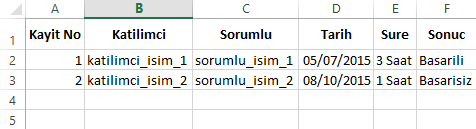
Ben gercek bir senaryo uzerinden gitmeyecegim icin, oncelikle kendime ornek bir “kaynak” tablo olusturuyorum..
 
Bu benim arastirma kayitlarimi tuttugum tablo olsun.. 
 
Fakat bir yandan da arastirma kayitlarima gore belirli bir formatta uretmek zorunda oldugum sonuc formlari olsun. Bunlara belki imza atilacak, belki de sadece soft copy olarak saklamak istiyoruz.
 
Ornek sonuc formum da soyle bir sey olsun:
 
 
Tabii ki burada “tarih”, katilimci, sorumlu, sure ve sonuc kisimlari dinamik olarak dolacak. En azindan bunu istiyoruz :)
 
Ve son olarak, bir karisiklik olmasin diye Sheet 1 ve Sheet 2 ‘de yer alan kaynak ve sonuc sekmelerimin isimlerini kaynak ve sonuc olarak degistiriyorum.


1.Adim
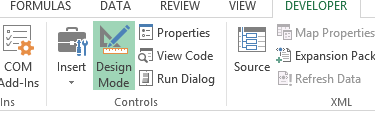
Excel dosyalarinizda alttaki gibi bir DEVELOPER sekmesi goremiyorsaniz, oncelikle Excel ayarlarimizdan DEVELOPER modunu acalim.
 
 
2.Adim
Artik developer modu acik olduguna gore, Developer sekmesine tiklayip
 
 
3.Adim
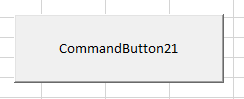
Insert menusunden calisma sayfamiza bir buton ekleyelim:
 
4.Adim
Design Mode secenegi aktifken, ekrana yerlestirdigimiz butona cift tiklarsak, Visual Basic editoru acilacak:


Simdi eglenceli kisma baslayabiliriz :)
 
5.Adim
Aslinda yapmak istedigimiz ne? Kisaca buna bakalim..
 
Kaynak tablomdaki Tarih kolonundan, Sonuc Formu olarak hazirladigim taslagin “spesifik” bir hucresine veri tasimak istiyorum.
 
Bu islemi KatilimciSorumluSureSonuc verileri icin de yaparsam Sonuc Formu hazir olacak..
 
O halde bana bir kac degisken gerekecek.
Dim katilimci As String
Dim sorumlu As String
Dim tarih As Date
Dim sure As String
Dim sonuc As String
 
Bu degiskenleri Sub satirimizdan sonra tanimlayalim.
 
Bir degisken de koordinat ifade etmek icin tanimlayalim, adi mesela loc olsun..
 

Dim loc As Integer

loc = 2 


loc degiskenimiz 2. satirdan baslasin dedim; cunku ilk satirda kolon basliklarimiz var.

Kucuk programimizin 2. satirdan baslayarak asagi dogru tablomuzu taramasini ve kaynak tablomuzdaki her bir satir icin bir sonuc formu olusturmasini istedigimize gore, satirlar bitince, yani bos bir satira gelince dongunun sonlanmasini soyleyelim.


Do While Not IsEmpty(Sheet1.Range(“a” & loc))


Boylece ilgili sheet ‘te bos bir satira gelmedikce loop etmeye birazdan ifade edecegimiz satirlari islet demis olduk.

O halde simdi kaynak tablonun nasil okunacagini ve sonuc formunun bu bilgilerle nasil doldurulacagini programlayabiliriz:


katilimci = Sheet1.Range(“b” & loc) 

sorumlu = Sheet1.Range(“c” & loc)

tarih = Sheet1.Range(“d” & loc)

sure = Sheet1.Range(“e” & loc)

sonuc = Sheet1.Range(“f” & loc)


Her satiri tek tek aciklamaya gerek yok, ama gordugunuz gibi en ustte tanimladigimiz her degiskenin, ilgili sheet ‘teki koordinatlarini verdim.

Soz gelimi LOOP ‘un ilk turunda katilimci degiskeni, Sheet1 ‘deki b2 hucresinde buldugu degeri alacak.

Sonra Do While kosulumuza gore bir sonraki satir hala bos degilse, 2. kez loop edecek, bu kez b3 hucresinde buldugu degeri alacak.

Boylece bu 5 degiskenimiz her bir LOOP ‘ta kaynak tablomdaki ilgili degerlerle guncellenecekler.

Simdi bu degiskenleri sonuc formunda uygun yerlere adresleyelim..

Once kursorumuze artik “kaynak” sheet ‘inde degil “sonuc” sheet ‘inde islem yapacagimizi soyluyoruz:


Worksheets(“sonuc”).Select


Arkasindan katilimci, sorumlu, tarih, sure, sonuc degiskenlerimizin sonuc formunda hangi hucrelere aktarilacagini adresliyoruz:


Worksheets(“sonuc”).Range(“b7”).Select

ActiveCell.Value = tarih


Worksheets(“sonuc”).Range(“e10”).Select

ActiveCell.Value = katilimci


Worksheets(“sonuc”).Range(“e11”).Select

ActiveCell.Value = sorumlu


Worksheets(“sonuc”).Range(“e12”).Select

ActiveCell.Value = sure


Worksheets(“sonuc”).Range(“g14”).Select

ActiveCell.Value = sonuc


Burada da soz gelimi ilk blokta aslinda, 


“sonuc” isimli sheet ‘imdeki b7 hucresine git, bu hucrenin degeri tarih degiskenimin degeridir. “


dedik.

Unutmayin, hala ilk loop ‘un icinde kursorumuz.. 

Simdi sonuc formu dosyamizin bu halini kaydedip bir sonraki satir icin yeni bir form olusturmaliyim.. O halde:

fname = katilimci & “_sonuc_dosyasi”  

gibi bir satir yazalim, boylece her dosyanin anlasilir bir ismi olsun. Hala ilk LOOP ‘ta oldugumuzu soylemistik, o halde ilk sonuc formu icin dosya adi b2 hucresindeki katilimci ismi ile baslayacak, ikinci LOOP ‘a gectigimizde ayni ifade bu kez b3 hucresindeki katilimci ismini alacagi icin dosya adimiz bu yeni katilimci ismi ile baslayacak.

Simdi de sonuc sheet ‘ini kopyalayip istedigimiz bir klasore yazmasini soyleyelim.

Worksheets(“sonuc”).Copy
ChDrive (“C”)
ChDir (“C:\sonuc_formlarim”)
ActiveWorkbook.SaveAs Filename:=fname & “.xlsx”

Ilk satirda ilgili sayfayi almasini, ikinci satirda “C” harfiyle baslayan diskime gitmesini, ucuncu satirda dosyanin kaydedilmesini istedigim klasorun yerini, dorduncu satirda ise fname degiskeniyle yukarida belirledigim dosya adimin XLSX uzantisi ile kaydedilmesini soylemis oldum.

Boylece ilk sonuc formum doldurulmus oldu, o halde loc degerimi 1 artirmali, yani 1 sonraki satira gecmeli ve LOOP etmeliyim.


loc = loc + 1
Loop


Bu dongu ustte  Do While ile belirttigimiz kosul saglandigi muddetce calisacak, bos satira gelince sonlanacak. 

Burada istiyorsak programimizi 

End Sub

Diyerek sonlandirip calistirmayi deneyebiliriz.  Programimizi kaydedelim ve kaynak sayfamiza donelim.

Sayfaya ekledigimiz butona bastigimiza formlar otomatik olarak olusacaktir..


Ya da bonus olarak her bir dokumanin bir de default yazicimiza gitmesini soyleyebiliriz. Tabii ki bunu henuz LOOP icindeyken yapmaliyiz :)

Iyi calismalar!

APEX: Etkilesimli Grafikler

Merhaba,

Bu yazimda sizlere APEX grafik raporlarindan bahsedecegim.

Bildiginiz gibi, interaktif olarak hazirladiginiz raporlariniz icin Action menusu yardimiyla analiz sayfanizda anlik rapor gorselleri alabiliyorsunuz.

Fakat veri setimizi kalici bir rapor olarak da; pasta dilimi ya da bar seklinde kullanicilarimiza sunmak isteyebiliriz.

Bunun yaninda kullanicinin raporda gordugu alanlara tiklamasi ile ilgili alani olusturan data setini ayni ekranda ya da ikinci bir tab ‘da verebiliriz.

Bu sekilde son kullanicilariniza tum detay kirilimlari bir seferde vererek koca bir set cikmak yerine, ise ozet ve bir bakista anlasilan bir gorsel sunarak baslamis oluruz.

Kullanici, yapacagi analiz dogrultusunda raporu dig edebilir, bir alt kirilima inebilir, raw data icinde bogulmamis olur.

Alttaki ornegimizi inceleyelim:

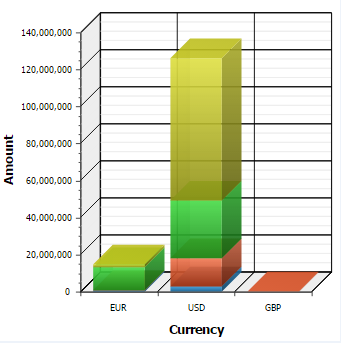
Elimizde farkli urun tipleri ve doviz cinsleri var. Para turlerine gore urun hacimlerimizi gruplayarak grafik haline getiriyoruz.

Sekil.1: Ornek Grafik

Simdi biraz basa donelim.

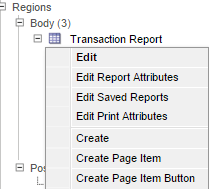
Page Region ‘imiza sag tiklayarak Create secenegini secelim,

Gelen secenekler arasindan Chart ‘i isaretleyelim

Sonra ne tur bir grafik olusturmak istedigimizi secelim. Benim ornegim 3d Stacked Column.

Gerekli secimleri yapip grafigimize bir isim verdikten sonra sistem bizden Query isteyecek.
Aslinda alttaki gibi bir sonuc donduren basit bir SQL sorgu yazmamiz gerekiyor.
Veri yapimizi taniyorsak ve ne istedigimizi biliyorsak oldukca kolay:)
Tek yapmaniz gereken uygun bir sekilde veri setinizi gruplara ayirmak.. Ustteki ornegi inceleyerek kendi ihtiyaclariniza gore uyarlamayi deneyin.
Grafik raporlar icin hazirladigimiz sorgularin belirli bir desene gore donmesi gerekiyor. Sistem sizden ilk sirada Link kolonunu gondermenizi bekleyecek.
Bu kolonu:
  1. Hic kullanmayabiliriz, yani NULL gondeririz. Kullanici rapordaki barlara ya da pasta dilimlerine tiklayinca hic bir sey olmaz.
  2. Kullaniciyi baska bir sayfaya yonlendirecek sekilde kullanabiliriz. Bu durumda Link kolonuna yine NULL gonderiyoruz, fakat rapor ayarlarimizdan bir takim ayarlar yapmamiz gerekiyor.
  3. Link kolonuna URL gonderebiliriz. Bunu yapmak icin kucuk bazi dinamik sql cumleleri yazmamiz gerekiyor.
Bu yazimda 2. madde uzerinden gidelim, bir dahaki yazimda da 3. maddeyi orneklerle aciklamaya calisayim.
Oncelikle grafigimizdeki barlardan birine tiklandiginda acilmasini bekledigimiz detay rapor nedir, buna karar vermemiz gerekiyor.
Madem grafigimiz farkli doviz cinslerine gore urun hacimlerimizi gosteriyor dedik, o halde detay raporun da soyle bir sey oldugunu kabul edelim.

Bu sorgu calisinca sistem kullanicidan :pv_currency degiskenini bekleyecek. Bu sorguyu yeni bir interaktif rapor olarak kaydedelim.

Tabii ki :pv_currency icin bu yeni interaktif rapor sayfamizda Page Item, Page Item Button olusturmamiz gerekecek, bunlari da atlamalayim.

Simdi tekrar Grafigimize donuyoruz..


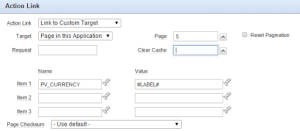
Chart Series olarak hazirladigimiz sorguya cift tiklayalim, ustte gordugunuz alani bulalim.
Dikkat ederseniz Target olarak Page in this Application sectik. Dolayisiyla artik grafigimiz, uzerine tikladigimizda o esnada calismakta oldugumuz Application icinden farkli bir sayfayi calistirmasi gerektigini biliyor.
Page menusunden detay olarak hazirladigimiz sorguyu deploy ettigimiz sayfayi gosterelim.
Alttaki Item seceneklerinden de bu “farkli” raporu hangi parametrelerle calistiracagini soyleyelim.
Ornek sorgumuzu hatirlayin: Sorgumuz bizden :pv_currency degiskenini bekliyordu.
Item 1 kutusunun yanindaki arama ikonuna tikladiginizda PV_CURRENCY degiskenini goreceksiniz.. Tabii Page menusunden detay sorgunuzun sayfa numarasini dogru vermisseniz. :)
ITEM 1 olarak PV_CURRENCY degiskenini isaret ettik.. Simdi de grafigimizdeki hangi degeri PV_CURRENCY item ‘ina Value olarak gonderecegimizi belirtelim:
Elimizde Link, Label ve Value kolonlari oldugunu hatirlayin. Benim ornegimde Label kolonunda doviz kodlarini siralamistim, zaten raporum da doviz kodlarina gore gruplanmis hacimleri gosteriyordu.
Bu nedenle ben Value olarak LABEL kolonunu seciyorum.
Bu sekilde kaydedip raporu calistirin ve farkli para kodlarina gore olusmus barlardan birine tiklayin.
Gelen sayfada yalnizca o doviz kodu icin filtrelenmis detaylari goreceksiniz.

Iyi calismalar :)

FortiClient: Remote Connection From Mac

This area wasn’t clear for me during the time I was trying to access remotely to my work environment..

So I will try to share my experiences as simple as it can be.

I. Client Environment

  • MacBook Air
  • OS X (El Capitan, Mojave tested)

II. Necessary Applications

  • FortiClient for VPN
  • FortiToken (Available at apple store and google play for android devices) for 2FA (Two Factor Authentication)
  • Any Remote Connection utility (i.e. Microsoft Remote Desktop)

a. FortiClient Set-up

Once you’ve got FortiClient installed on your computer, it will locate its icon into your application folder; launch it.

Click the burger icon at the right side of VPN Name LoV. Select Add a new connection from the menu.

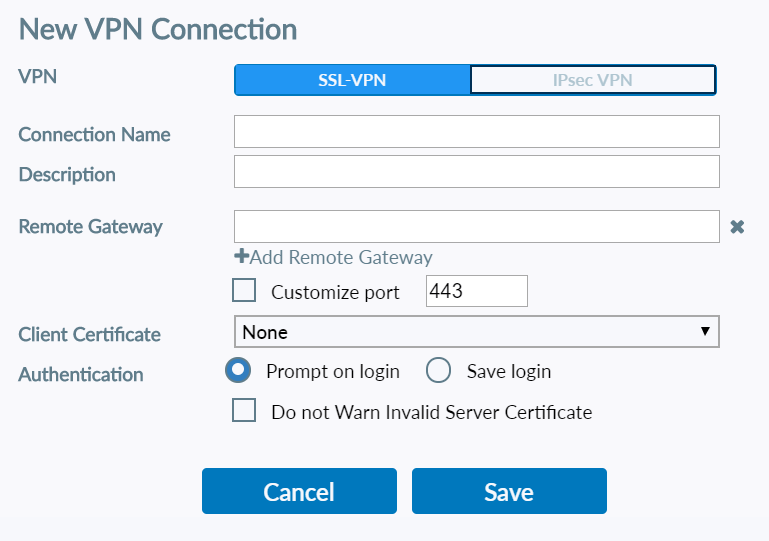
Then a new window will pop-up. Fill in the blanks by using following example.

  • VPN should be left as its default (SSL VPN)
  • You can give any name for the field Connection Name
  • You can type any definition to the Description field
  • RemoteGateway is an IP address you should ask to your company ‘s IT department.
  • ClientCertificate left as it is.
  • Username provided by IT. It can be either a new user name of yours or same user name that you use to login your company computer, namely LDAP authentication. In that case, your password will be the same password you use to logon your office pc.

Apply it to keep this configuration. Afterwards you ‘ll be able to select the connection that you ‘ve created from the VPN Name Menu. Select it, type your VPN password, then click Connect button.

Perhaps you’ll see some certificate warnings. Click Yes to proceed.

Caution:This password can be your Windows password but not necessarily. It depends on your company’s policy/configration.

As you can see, I have 2fa in my example. Keep reading to find out why..

TOKEN generator

According to your VPN user’s security preferences, it may prompt you to enter authentication code. That you can populate from your FortiToken application on your phone. A paranthesis here, you’ll have to *activate* your FortiToken key generator first. If your VPN user has 2FA you must have received a key or QR code too. Use it to activate your fortitoken.

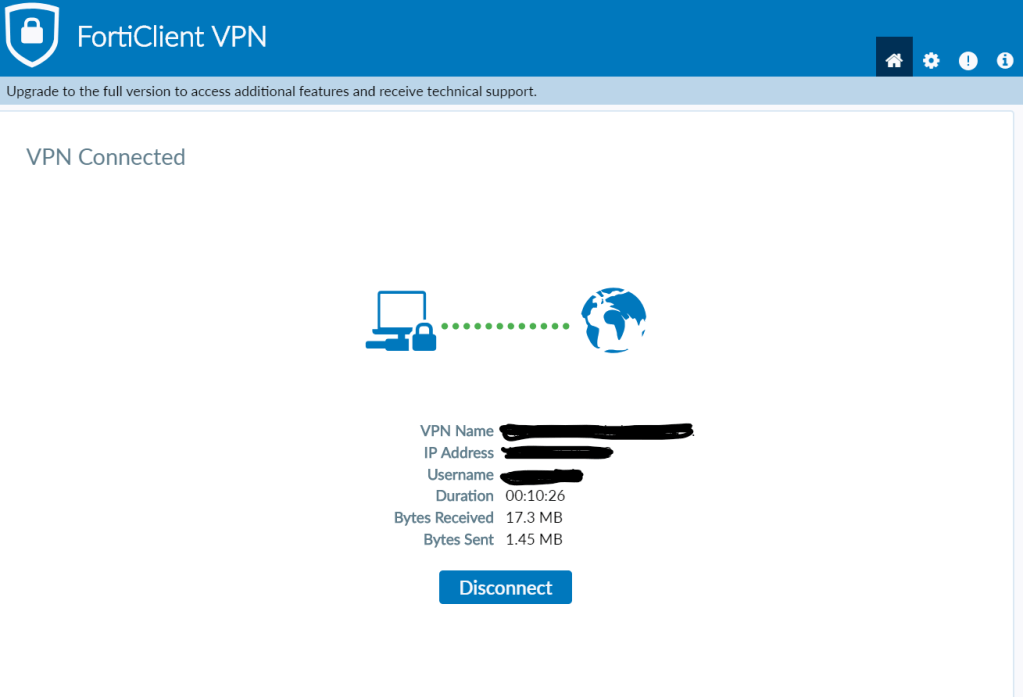
If a secure connection is established, you should be seeing a screen like this one:

This means that a secure Virtual Private Network connection is ready between your client and remote system. In short, you can access remotely to your office computer now.

            b. Microsoft Remote Desktop Set-up

After VPN connection is established, open your remote desktop application. Give your company pc’s ip address and connect. It will ask you to enter your domain user name which will be something like MYCOMPANYDOMAIN\my.username

type it along with your password. This password is your office pc’s windows password. The one you use to unlock your computer.

If you have more than one screen you might need to take a look at DISPLAY tab and select use all of my screens.

That’s all.. well almost.

If you did all the things explained here and still failed to connect, take a look at your company computer’s remote access settings. See the image below;

Open a file explorer, right click THIS PC and select properties from the pop-up menu.

Now click to Remote Settings. If you don’t have necessary privileges, you ‘ll be prompted to enter user name and password who has the right access rights to this menu. So perhaps it’s best to ask IT help at this point.

Should you have the right, click Allow Remote Connections to this computer radio button. Then Click ADD, and add yourself.

IV. Exceptions and Notes:

  • You do need administrative rights on Clientcomputer in order to install these applications and configure them.
  • Perhaps you’ll need a key generator if some sort of 2FA is in place. If so, you may want to take a look at FortiToken. It’s available for download at apple store and google play.

APEX: Coklu Secim

Raporlama, data analizi, monitoring gibi ihtiyaclarimiz icin Oracle ‘in Application Express ‘ini kullaniyorsunuz.

Kullaniciya bolum kodu secebilecegi bir menu verdiginizi ve buna gore sorgunuzun calistigini dusunun.

WHERE bolum_kodu = :pv_bolumkodu

Peki, kullanicimizin ayni anda birden fazla bolum kodu secebilmesini istersek?
Elbette

WHERE bolum_kodu in (:pv_bolumkodu_1, :pv_bolumkodu2, :pv_bolumkodu3)

gibi degiskenlerimizi cogaltabiliriz. Ama ortada onlarca ya da daha fazla secenek varsa her olasilik icin bir degisken tanimlayacak degiliz :)

Ekrana bir Shuttle ya da coklu secime izin veren bir Select List koyarak kullanicidan birden fazla input parameter almak istedigimizi ve bu listenin n secenek icerdigini dusunelim.

Ornek.1 ‘deki gibi, Interaktif raporunuza sag tiklayarak Create Page Item secenegi ile bir Shuttle ekledigimizi varsayalim..

Ornek.1

olusturdugumuz Page Item ‘in adini, sorgumuzda kullandigimiz degisken gibi PV_BOLUMKODU olarak verelim.

Ardindan Static ya da Dynamic menu icerigi hazirlamamiz gerekecek.

Bunlari da tamamladiktan sonra yine Ornek.1 ‘de gorulen Create Page Item Button secenegi ile bu kez de sayfamiza bir buton yerlestirelim.

Tum bu temel hazirliklarin ardin, raporumuzu calistirmak icin

butona basildiktan hemen sonra, ama raporun execute edilmesinden de hemen once 

calisacak sekilde bir page process yazmamiz gerekecek.

O halde uygulamamiza Ornek.2 ‘de gorulecegi gibi bir Page Process ekleyelim.

Ornek.2

Temelde ihtiyacimiz olan sey kullanicinin secimlerini not edip, bu bilgiyi query ‘miz her calistiginda kosul olarak sorgumuza “soyleyebilmek”..

Bunu yapmak icin aklimiza bir cok -pratik ya da kompleks- ozgun cozum gelebilir. Fakat Oracle ‘in bu tur istekleri karsilamak uzere sundugu yapiyi da kullanabiliriz..

Bunun icin Page Process ‘imizin PLSQL blogunda string ‘imizi table ‘a donusturmek uzere bir seyler yazmayi deneyelim..

DECLARE
pv_secim apex_application_global.vc_arr2;
BEGIN       
pv_secim := apex_util.string_to_table (:pv_bolumkodu);
apex_collection.create_or_truncate_collection ('pv_shuttle');
apex_collection.add_members ('pv_shuttle', pv_secim );
END;
Ben bu islemi yalnizca menu secimini “hatirlamak” icin kullanmak istiyorum.. O yuzden secimi gercek bir tabloya yazmak yerine APEX_COLLECTION ile biriktirmeyi tercih ettim.
pv_secim degiskenimiz APEX_COLLECTION sayesinde, ekranda pv_bolumkodu ile gelen bind variable ‘lari row by row saklayacak.
Shuttle menunuzden:
  • a
  • b
  • c
  • d


olmak uzere 4 satir secmisseniz, secimleriniz a:b:c:d seklinde siralanacaktir.

Ustte yazdigimiz BEGIN END blogumuzu calistiralim ve PV_BOLUMKODU soruldugunda a:b:c:d girelim.

Statement calistiktan sonra
SELECT *
   FROM apex_collections;
tablosundan sonucu izledigimizde Ornek.3 ‘teki gibi bir goruntu aliyor olmaliyiz.
Ornek.3
Ne yapmaya calistigimizi anlamissinizdir :) Sonrasi oldukca kolay:
WHERE bolum_kodu = :pv_bolumkodu
demek yerine, artik
WHERE bolum_kodu IN (SELECT c001 
                     FROM apex_collections 
                     WHERE collection_name = 'PV_SHUTTLE'
                    )

diyebiliriz.